StripChat Not Working? Video, Sound and Login Fixes
A page that will not open, a buffering stream and a rejected password need different checks. Start by identifying what fails, then change one thing at a time. This guide helps you narrow down browser, connection and account problems before sending the details to support.
First checks when StripChat is not working
Before clearing data or changing account settings, note the symptom and any error text. Does the whole website fail, does only one stream freeze, or does the problem start when you sign in? That distinction will help you choose the right section below.
- Page will not open: compare with another website and another browser.
- One stream fails: check a different public room.
- Picture works but sound does not: check the player and device volume.
- Login is rejected: read the error before trying another password.
Reload the page, restart the browser and check for a browser update. The official streaming help article also recommends checking extensions and the connection if playback still fails.
Is StripChat down or is it a local problem?
If StripChat will not open, try another website on the same device. If both fail, start with your connection. If other websites work, try StripChat in a second updated browser. Where access is available, a comparison on another trusted device or connection can help isolate the problem.
If the site works in another browser, the original browser's settings or stored data are worth checking. If only one room is affected, the stream itself may be the issue. Failure across several devices and connections could indicate a wider problem, but these comparisons alone do not confirm a platform-wide outage.
Check the official support center for available guidance. This article is a troubleshooting guide, not a live service-status report. If you see an access restriction or account notice, follow the official instructions or ask support to explain it.
Video not loading, black screen or buffering
Open another public stream first. If it plays normally, retry the original room later. For repeated buffering, close heavy downloads and unnecessary tabs, then compare playback using a stable connection. Lowering the player quality, if that option is available, can also help you check whether bandwidth is the limitation.
For a blank or stuck player, test in another updated browser. Google's video playback troubleshooting guide explains that extensions, JavaScript settings and stored browser data can affect media. Check those settings for the actual site you are visiting.
An ad blocker or other extension may interrupt playback. Test by pausing the relevant extension for this site, reload once, and restore the setting after the comparison. Avoid disabling browser security globally or installing a file advertised as a special video codec.
If you already use a VPN or proxy, it may add another variable. The platform's streaming instructions recommend testing without a VPN. Make that comparison only if you are comfortable using the direct connection.
StripChat has no sound
Start with the speaker control inside the video player: unmute it and raise its volume. Then check whether the browser tab is muted, the device's media volume is turned up and the correct output device is selected. Bluetooth headphones or an external display may be receiving the audio instead of your speakers.
Test another stream and audio from another website. If other audio works but one room remains silent, the broadcaster may be having a microphone or stream problem. StripChat's sound help article recommends checking player and system volume and notes that the issue can be on the broadcaster's side.
On a phone, tap the player and check media volume while it is active. Changing ringtone volume alone may not change playback volume. If several rooms are silent in one browser, compare with another browser before changing unrelated account settings.
Cannot log in to your StripChat account
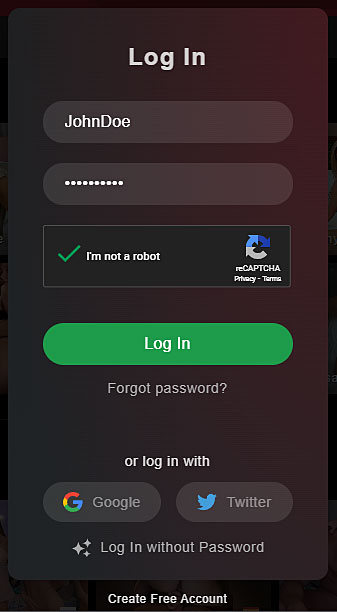
Check your username or registered email, keyboard layout and Caps Lock. A password manager may have selected credentials for another account. If you no longer know the password, use the recovery option instead of repeatedly guessing.

The official recovery instructions explain how to request a reset email and check the spam folder. Our login guide includes existing screenshots of this process.
If the site requests a two-factor authentication code, use your configured authenticator. If you cannot access it, contact official support for account recovery. A suspension or inactive-account message needs support review: clearing cookies will not reverse an account restriction. The official login help article distinguishes incorrect credentials from account and access issues.
Cookies, cache and browser settings
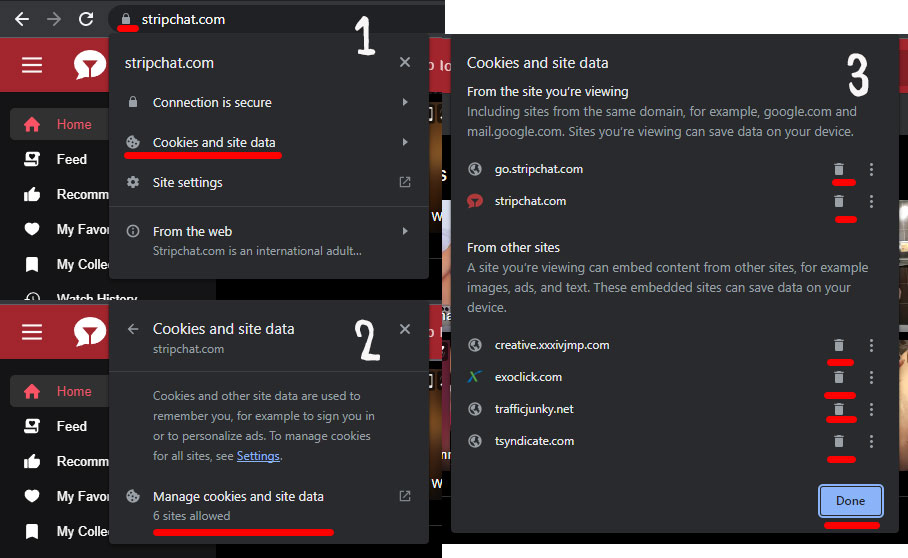
If playback or login works in a fresh browser session, stored site data or an extension may be involved. A private window can help with this comparison, but its cookie settings may differ, so a failure there is not conclusive.
For Chrome, open Settings, then Privacy and security, Third-party cookies, and See all site data and permissions. Search for the affected website and remove its saved data. Google's cookie management instructions provide the current steps. Other browsers use different labels.
Removing cookies can sign you out and reset preferences. Make sure you can access your password and authenticator before doing this. Start with data for the affected site rather than deleting all browser history or saved passwords.
Reload afterward and sign in again if needed. If strict cookie settings appear to interrupt login, review the browser's explanation and test a site-specific setting. You do not need to allow tracking on every website to troubleshoot one session.
StripChat not working on iPhone or Android
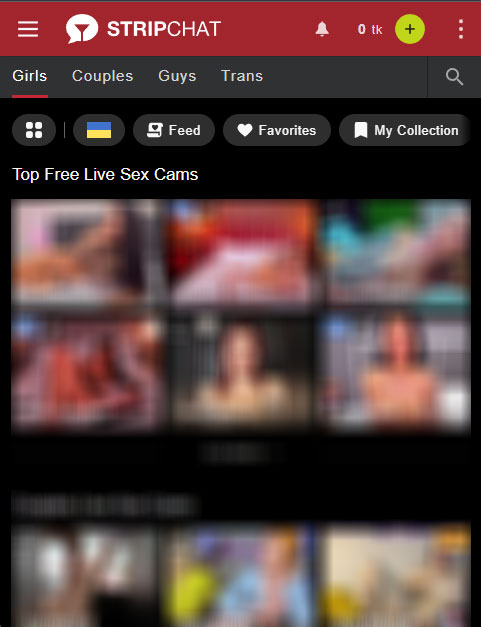
Open the site directly in your regular mobile browser rather than an embedded browser inside a messaging or social app. Update the browser and retry after closing unused tabs. For the existing mobile interface walkthrough, see our mobile guide.
Compare Wi-Fi with mobile data if both are available and you are comfortable with any data charges. If only one connection fails, note that result for support. If both fail in one browser, test another browser before making larger device changes.
For sound, check the player, media volume and connected Bluetooth devices. For login, review the account steps above. An unknown APK or “repair app” is not necessary for these browser checks; our security guide covers suspicious downloads and offers.
When to contact StripChat support
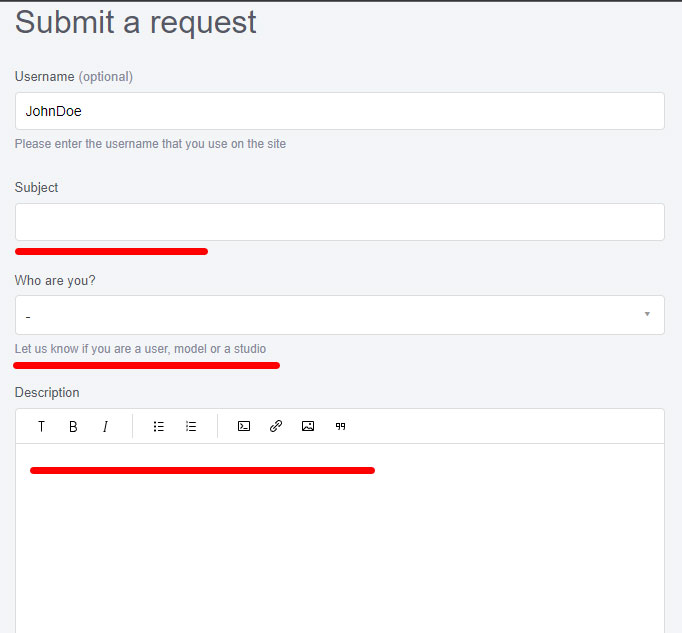
Contact the official support center if the checks do not help or an account notice needs explanation. Our contact support guide shows examples of the help pages.
Include your device and operating system, browser version, the time and time zone, the exact error, and whether the issue affects one room or the whole site. Describe the comparisons you made and attach a screenshot with private information hidden. Never include your password or authenticator code.
Troubleshooting FAQ
Why does StripChat work in one browser but not another?
That points toward a difference in browser version, extensions, settings or stored site data. Compare those before changing your account.
Will clearing cookies delete my account or tokens?
Removing local browser data is different from deleting an account. It can end your browser session, so you may need to sign in again. If the balance still looks wrong, contact support.
Why is only one model's video or sound affected?
If other rooms work, the issue may be specific to that broadcast. Retry later and include the room and time if you report it.
Information checked on October 11, 2026. Screenshots show an earlier interface; browser menus and support forms may look different today.